Adding an add-in in Microsoft Apps
Overview
Add-ins extend Microsoft 365 apps like Word, Excel, PowerPoint, and Outlook with extra functionality — think e-signature tools, translation helpers, or other productivity extensions. This guide walks you through adding an add-in to your own apps.
Some organizations restrict which add-ins users can add on their own. If you don't see the store or the Add button is unavailable, your IT team may need to enable or deploy the add-in for you — just reach out and let us know which one you need.
Adding an add-in in Word, Excel, or PowerPoint
Open the app and go to the Home tab (or the Insert tab, depending on your version).
Click Add-ins, then More Add-ins (this may be labeled Get Add-ins).
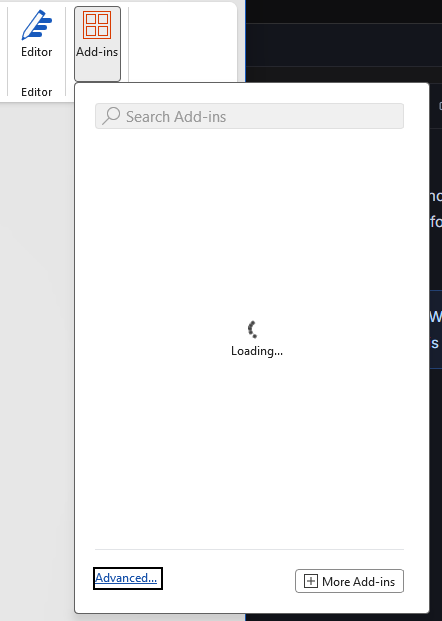
In the window that opens, use the Store tab to search for the add-in you want.
Click Add next to it, then accept the license terms and privacy prompt.
The add-in appears on your ribbon — usually on the Home tab — and is ready to use.
Adding an add-in in Outlook
Outlook works a little differently depending on which version you use.
New Outlook or Outlook on the web
Open a message, then click the Apps icon (or the … menu → Get Add-ins).
Search the store, click Add, and accept the prompts.
Classic Outlook for Windows
Go to File → Manage Add-ins (or Get Add-ins).
This opens the add-in store in a browser tab. Search for the add-in, click Add, and accept the prompts.
Managing and removing add-ins
To review or remove add-ins you've added:
Open Get Add-ins (or More Add-ins) again.
Go to the My Add-ins tab to see everything you've added.
Right-click the add-in (or use the … menu next to it) and choose Remove.
Troubleshooting
Problem | What to try |
|---|---|
The add-in doesn't appear after adding it | Fully close and reopen the app. In Outlook, try signing out and back in. |
The store or "Add" button is missing | Your organization may have restricted user-added add-ins. Contact us and we can add it for you. |
The add-in loads but shows an error | This usually points to a problem on the add-in provider's side. Try again shortly, and let us know if it persists. |
Only add add-ins from providers you recognize and trust. Add-ins often request access to your documents or email content, so stick to tools your organization has approved. If you're unsure whether an add-in is safe to use, ask us first.
Still stuck? Reach out to ServerNova support with the name of the add-in and the app you're using it in, and we'll get you set up.